
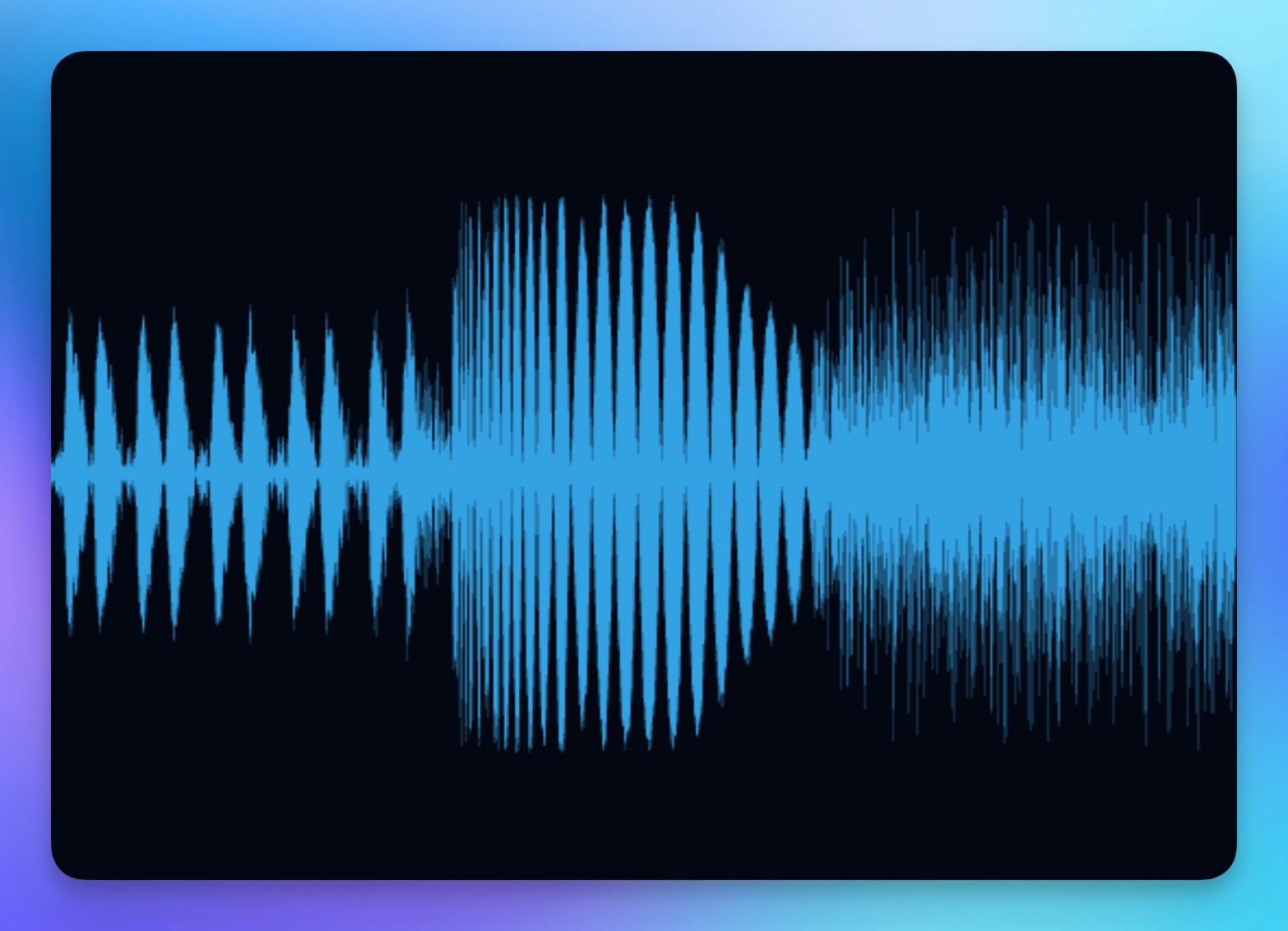
The Waveform visualizer displays your audio as a classic oscillating line that moves in sync with your music. It's one of the most recognizable audio visualization styles, perfect for music videos, lyric videos, and any project where you want to show the energy of your sound.
Properties
Color
Pick any color for your waveform line. You can animate the color using keyframes to create dynamic shifts that match your music's mood — for example, transitioning from cool blue during verses to vibrant red during the chorus.
Opacity
Controls how transparent the waveform appears (0–1). Lower values make it more subtle, which works well when layering the waveform behind other elements or text.
Window Size
Determines how much of the audio waveform is visible at once (0.5–5). Higher values show a longer time span of audio, creating a smoother, more compressed appearance. Lower values zoom in on less audio, making the waveform movements more dramatic and responsive.
Width
Controls the horizontal span of the visualization (0.5–12). Increase this to stretch the waveform across more of your scene, or decrease it for a more compact look.