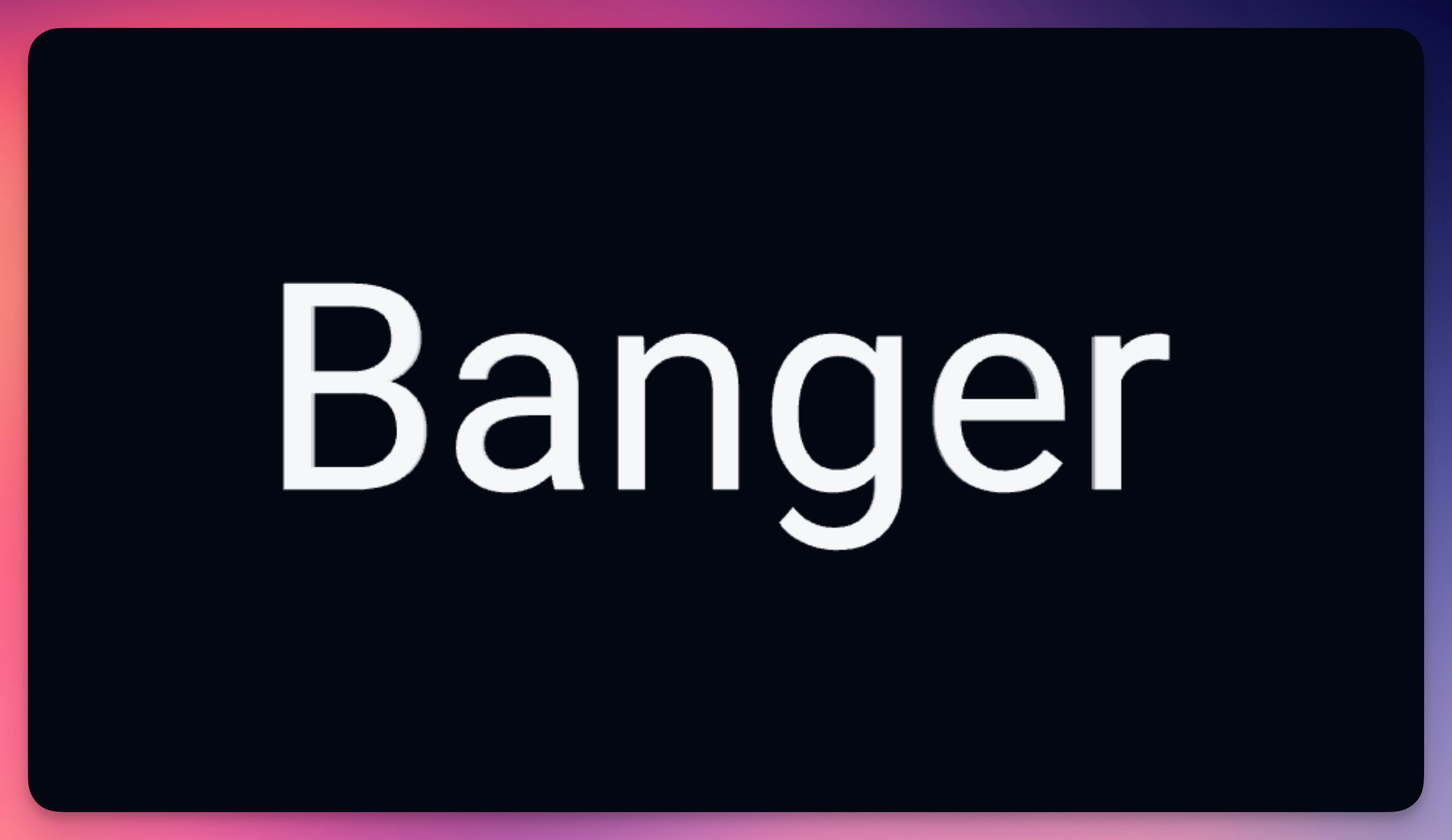
The Text element displays high-quality 2D text that always faces the camera. With access to hundreds of Google Fonts, material properties like metalness and roughness, plus stroke and shadow effects, you can create everything from clean titles to stylized typographic designs.
For text synchronized with audio, use Lyrics instead.
Properties
Text Content
Enter the text you want to display. Supports multiple lines for titles, lyrics, or any typographic content.
Font
Choose from hundreds of Google Fonts. The font picker shows a preview of each font, and you can select font weight (if available) for bold or light variations.
Style
Alignment: Set text alignment to left, center, right, or justify.
Italic: Enable italic style (when available for the selected font).
Appearance
Color: Sets the text color. Supports keyframe animation for dynamic color changes.
Opacity: Controls transparency (0–1).
Metalness: Adds a metallic sheen to the text surface (0–1). Higher values create a chrome-like appearance.
Roughness: Controls surface reflectivity (0–1). Lower values make text shinier, higher values make it more matte.
Layout
Line Height: Adjusts spacing between lines of text (0.5–3).
Letter Spacing: Controls spacing between individual characters (-0.1–0.5).
Stroke & Shadow
Stroke Width: Adds an outline around the text (0–0.2).
Stroke Color: Sets the outline color.
Shadow Blur: Creates a soft shadow effect (0–0.5).
Shadow Offset X/Y: Positions the shadow relative to the text (-0.2–0.2).
Animation (3D Mode)
Rotate Automatically: Enables continuous rotation in 3D mode.
Rotation Speed: Controls auto-rotation speed (0.1–1).