
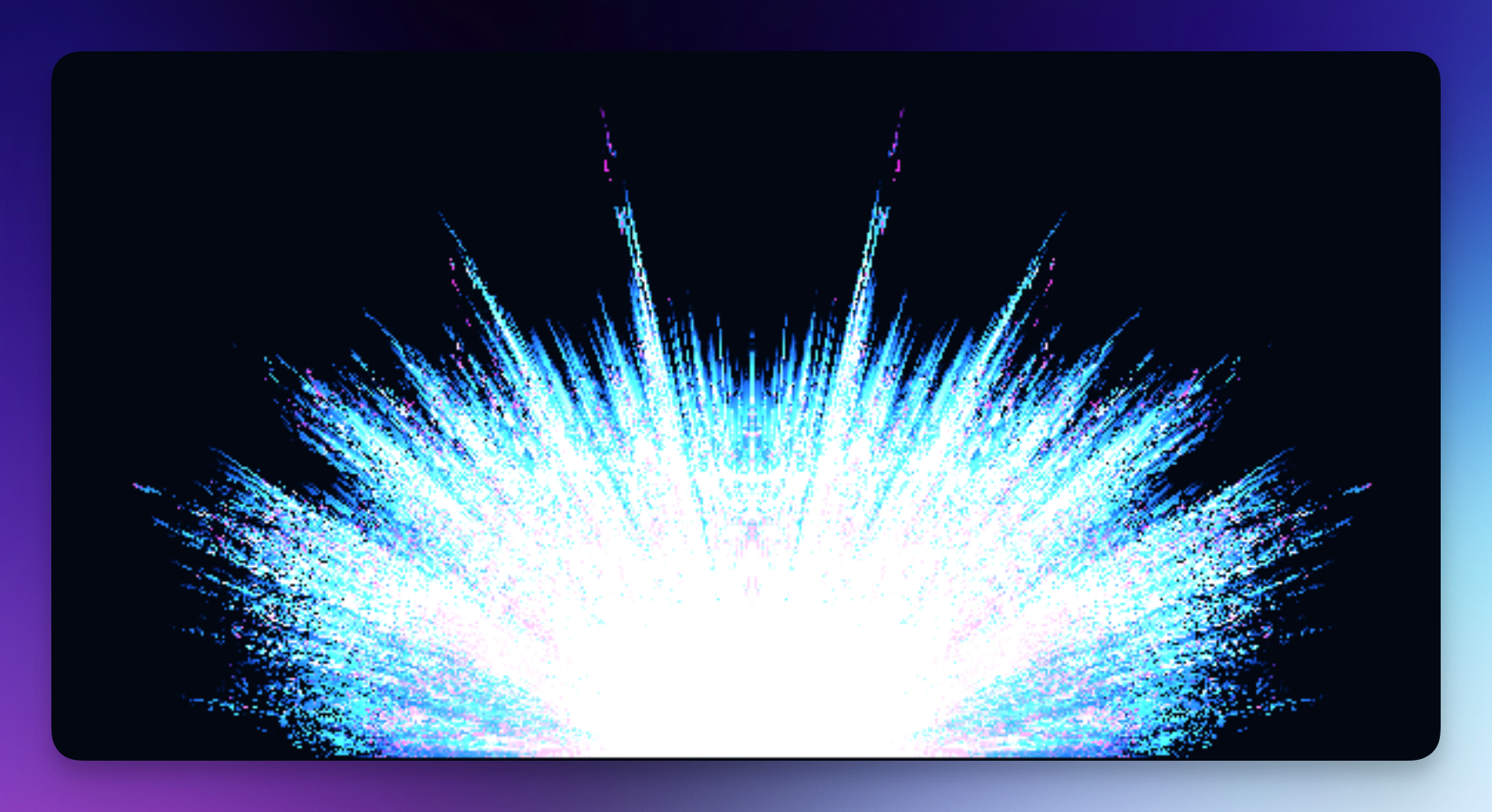
The Pulsar visualizer creates intense light rays that radiate outward from a central point, reacting to your audio. It produces a dramatic, explosive effect — like a star bursting with energy — that works especially well with high-energy drops, beats, and climactic moments in your music.
Properties
Primary Color
Sets the main color of the light rays.
Secondary Color
Sets the accent color that blends with the primary color, creating color variation across the rays.
Opacity
Controls how transparent the pulsar appears (0–1).
Intensity
Controls the brightness and visibility of the rays (0.5–5). Higher values create more vivid, intense light bursts.
Density
Controls how many rays emanate from the center (0.1–5). Higher values create denser, more detailed ray patterns.
Pattern
Adjusts the ray pattern complexity (0.5–16). Different values create varying visual patterns and ray arrangements.
Volume
Controls the overall size and spread of the light burst (0.5–7). Higher values make the rays extend further outward.