
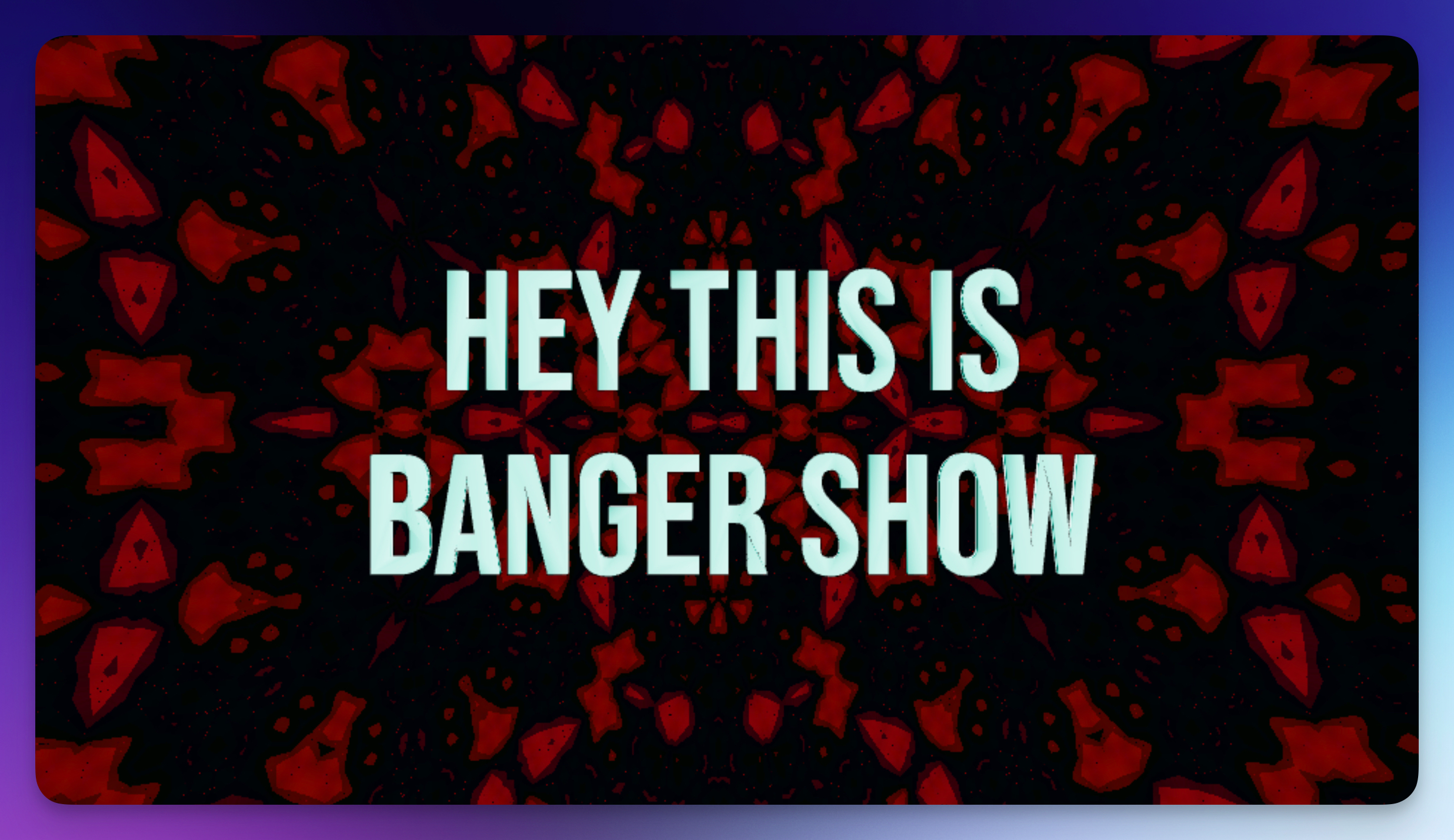
The Lyrics element displays text synchronized to your audio, animating each word or sentence as it plays. With AI-powered lyric recognition, customizable animation styles, and full styling control, you can create professional lyric videos that bring your music to life. Lyrics appear and animate in time with your track, making it easy to create engaging sing-along content.
Properties
Appearance
Font: Choose from hundreds of Google Fonts for your lyrics style.
Align: Set text alignment to left, center, or right.
Color: Sets the lyrics color.
Opacity: Controls transparency (0–1).
Metalness: Adds metallic sheen (0–1).
Roughness: Controls surface reflectivity (0–1).
Thickness: Sets 3D extrusion depth (0–2).
Outline
Enable Outline: Adds a contrasting outline around lyrics.
Outline Thickness: Controls outline width (0.01–0.5).
Outline Color: Sets the outline color for better readability.
Display Mode
Group By: Choose how lyrics are displayed:
- Word: Shows one word at a time with smooth transitions.
- Sentence: Displays full lines or sentences together.
Show Punctuation: Toggle whether to display punctuation marks.
Max Line Width: (Sentence mode) Controls how wide lines can be before wrapping (1–100).
Line Spacing: (Sentence mode) Adjusts vertical spacing between lines (0.1–5).
Animation Style
Choose from three animation presets, each with customizable parameters:
Standard Entry: Classic fade-in with directional movement.
- Duration, Direction, Distance, Initial Size, Tilt, Bounce
Wobbly Bounce: Playful bouncing animation with shake effects.
- Duration, Entry Bounce, Shake Amount, Shake Speed
Elastic Stretch: Stretchy, rubbery entrance animation.
- Duration, Stretch Amount, Tension
Lyrics Editor
After generating or importing lyrics, fine-tune timing in the lyrics editor. Adjust when each word or phrase appears to perfectly match your audio.