
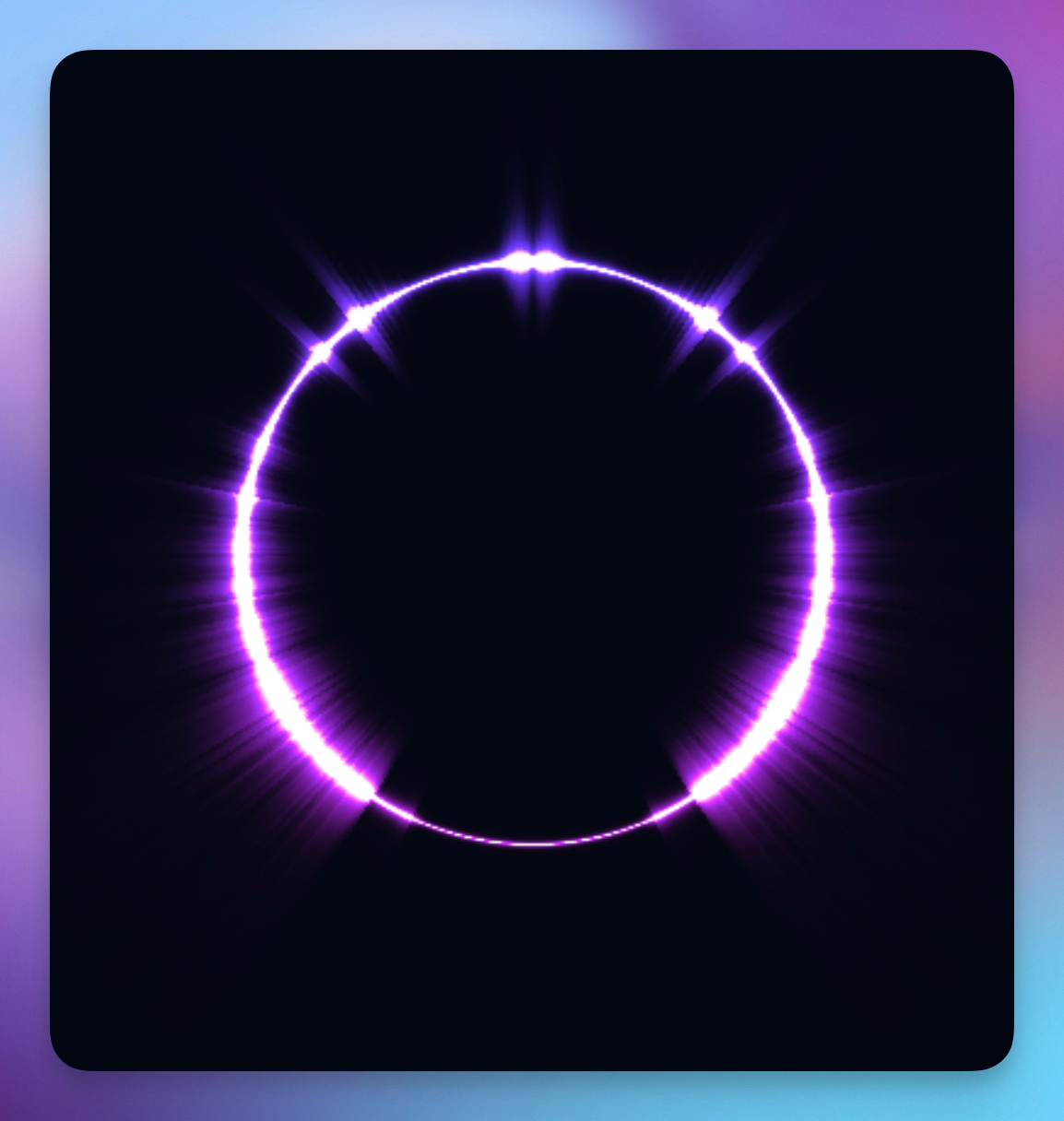
The Circle visualizer arranges frequency bars in a circular pattern, creating a radial spectrum analyzer. Bars extend outward from the center, reacting to different frequency bands in your audio. It's a popular choice for music videos, podcast visuals, and any project that needs a dynamic, eye-catching centerpiece.
Properties
Start Color
Sets the color at the inner edge of the bars, near the center of the circle.
End Color
Sets the color at the outer tips of the bars, creating a radial gradient effect from center to edge.
Opacity
Controls how transparent the circle visualizer appears (0–1).
Smooth
When enabled (default), the visualizer appears as a continuous ring that flows smoothly as the circle. When disabled, it displays as individual rounded bars arranged radially — similar to a circular version of the Spectre visualizer.

Intensity
Controls how reactive the bars are to audio (0.5–10). Higher values make bars extend further outward in response to louder frequencies.
Bars Width
Sets the thickness of individual bars (0.5–10). Wider bars create a solid, filled appearance, while thinner bars show more separation.
Bars Count
Sets the number of bars around the circle (5–150). More bars create a denser, more detailed ring, while fewer bars give a simpler, more stylized look.
Radius
Controls the size of the inner circle (0.1–0.8). Smaller values create a tighter center with longer bars extending outward. Larger values create a bigger hollow center with shorter bars.