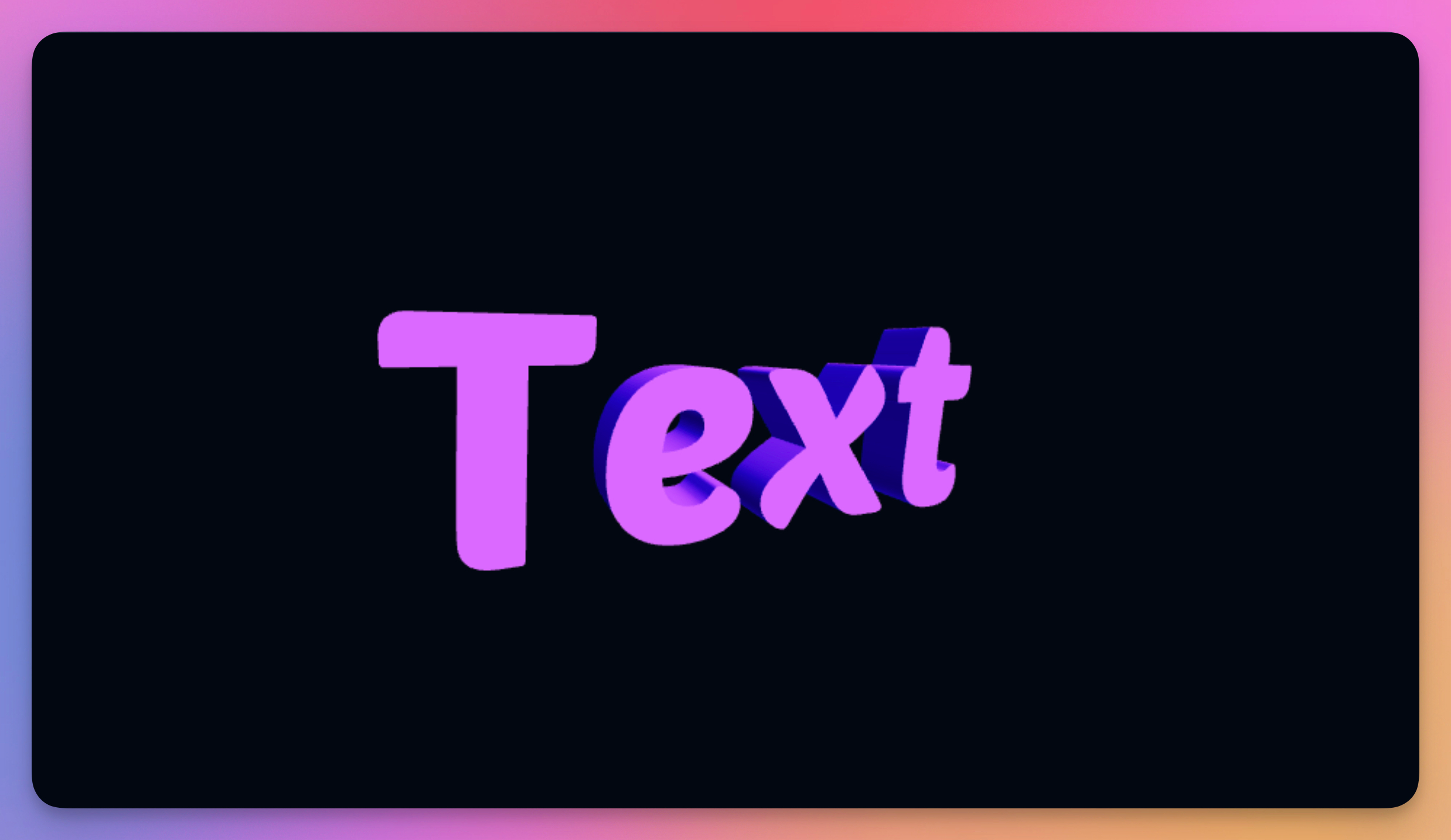
The 3D Text element creates extruded text with real depth and thickness. Unlike flat 2D text, 3D Text has physical presence in your scene, casting shadows and interacting with lighting. It's perfect for bold titles, logo treatments, and any typography that needs to stand out with dimension.
Properties
Text Content
Enter the text you want to display. The text will be rendered as a 3D extruded mesh.
Font
Choose from hundreds of Google Fonts. Different fonts create dramatically different 3D appearances when extruded.
Align
Set text alignment to left, center, or right.
Appearance
Color: Sets the text color. Animate with keyframes for dynamic color shifts.
Opacity: Controls transparency (0–1).
Metalness: Adds metallic reflections to the text surface (0–1). Great for chrome or gold effects.
Roughness: Controls surface smoothness (0–1). Lower values create shinier, more reflective text.
Thickness: Sets the extrusion depth of the text (0–2). Higher values create deeper, more pronounced 3D text.
Outline
Enable Outline: Adds a contrasting outline around the text edges.
Outline Thickness: Controls the outline width (0.01–0.5).
Outline Color: Sets the outline color, useful for creating contrast or highlights.
Animation (3D Mode)
Rotate Automatically: Enables continuous rotation to showcase the 3D depth.
Rotation Speed: Controls auto-rotation speed (0.1–1).