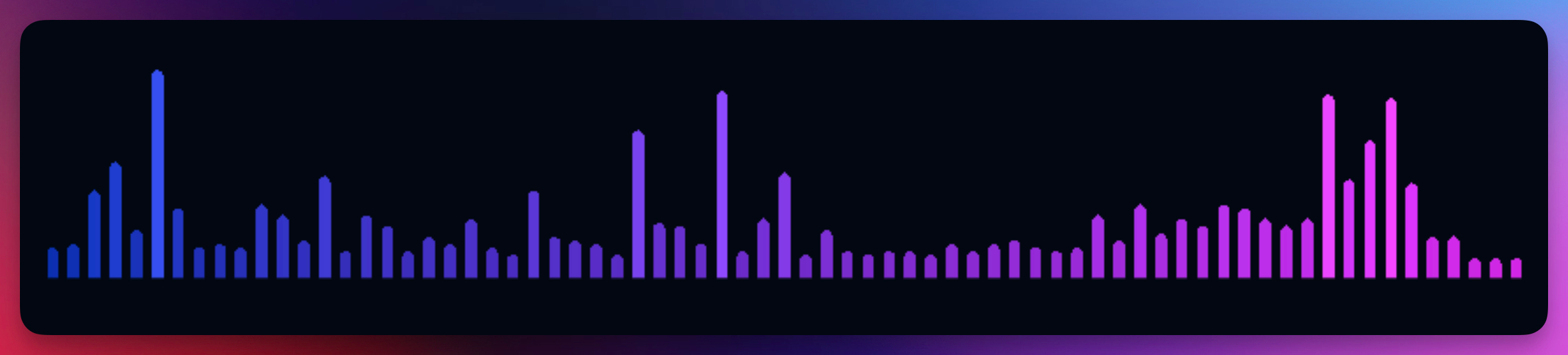
The Spectre visualizer displays your audio as vertical bars that represent different frequency bands — low frequencies on one side, high frequencies on the other. Each bar rises and falls based on the intensity of that frequency range, creating the classic spectrum analyzer look seen in music players and audio software.
Properties
Color
Sets the starting color of the spectrum bars. This color appears at the base of each bar.
End Color
Sets the color at the top of the bars, creating a gradient effect. Use contrasting colors for a vibrant look, or similar tones for a more subtle gradient.
Opacity
Controls how transparent the spectre appears (0–1).
Intensity
Controls how reactive the bars are to audio (0.5–10). Higher values make the bars jump higher in response to sound, creating more dramatic movement.
Bars Width
Sets the thickness of individual bars (0.5–10). Wider bars create a bold, chunky look, while thinner bars give a more detailed, precise appearance.
Bars Count
Sets the number of frequency bars displayed (5–240). More bars show finer frequency detail, while fewer bars create a simpler, more stylized look.
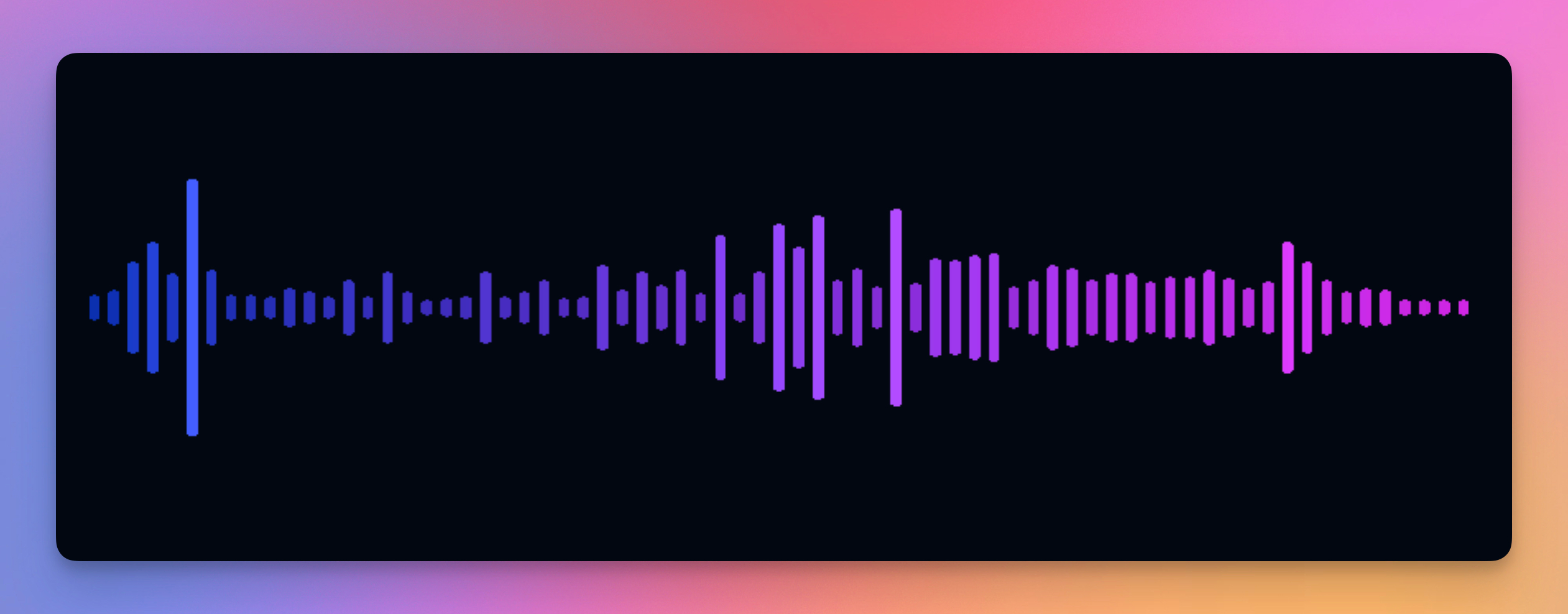
Bottom Aligned
When enabled, bars grow upward from a fixed bottom edge. When disabled, bars are centered and grow in both directions.