
The Sparkles element creates a cloud of glittering, animated particles that add magic and energy to your scene. Sparkles float, drift, and twinkle automatically, creating an ethereal atmosphere perfect for dreamy visuals, celebrations, or adding visual interest to any composition.
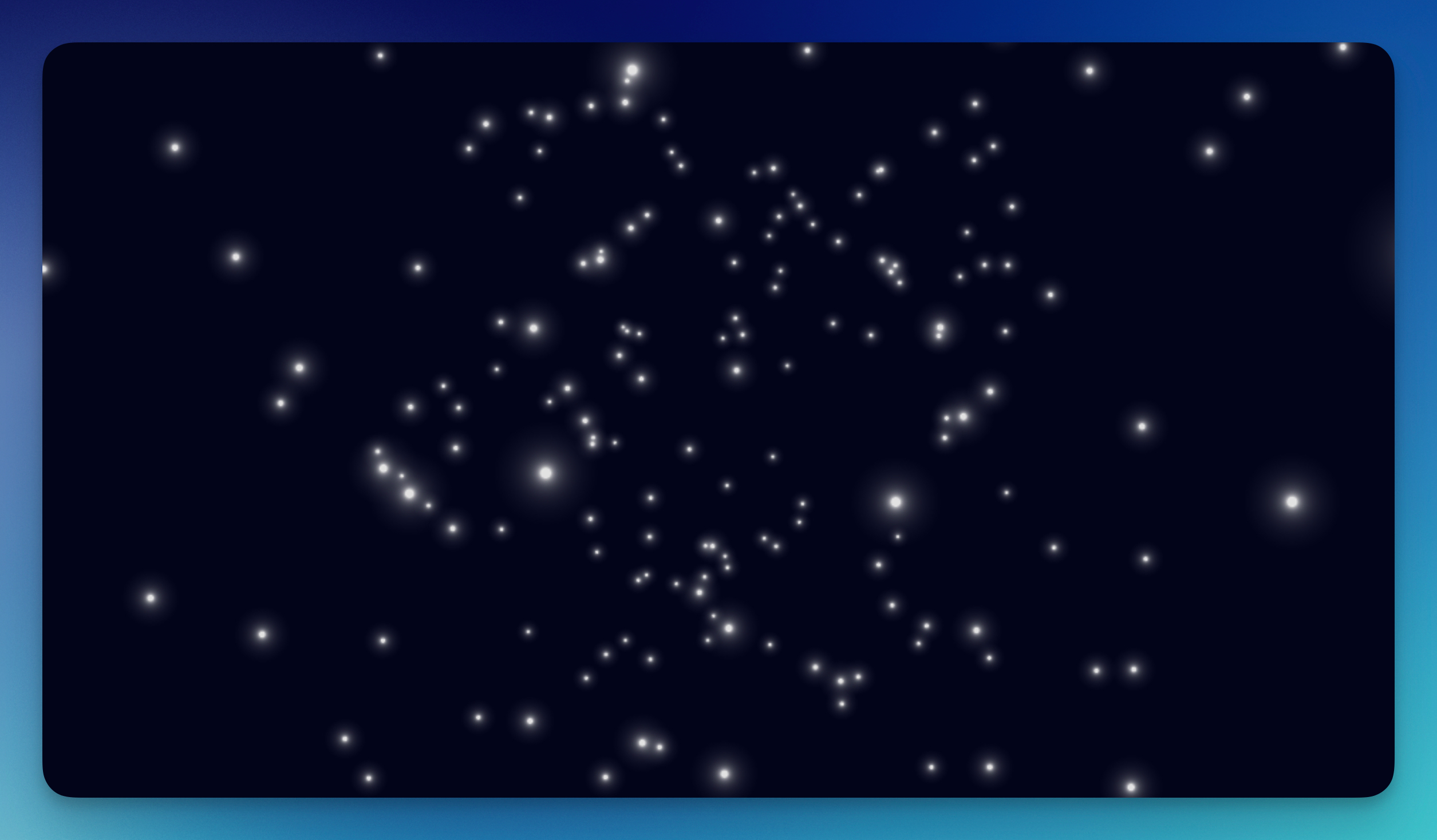
Properties
Color
Sets the color of the sparkle particles. Bright colors like white, gold, or cyan create the most visible sparkle effects.
Count
Controls how many sparkle particles are displayed (0–256). More particles create a denser, more magical effect.
Size
Sets the size of individual sparkle particles (0–32). Larger sparkles are more visible but fewer are needed for a good effect.
Opacity
Controls the transparency of the sparkles (0–1). Partially transparent sparkles create a softer, more ethereal look.
Speed
Controls how fast the sparkles animate and move (0–16). Higher speeds create more energetic, dynamic movement.
Noise
Adds randomness to the sparkle movement pattern (0–16). Higher values create more chaotic, organic motion.
Animation
Rotate Automatically: Enables rotation of the entire sparkle cloud.
Rotation Speed: Controls auto-rotation speed (0.1–1).