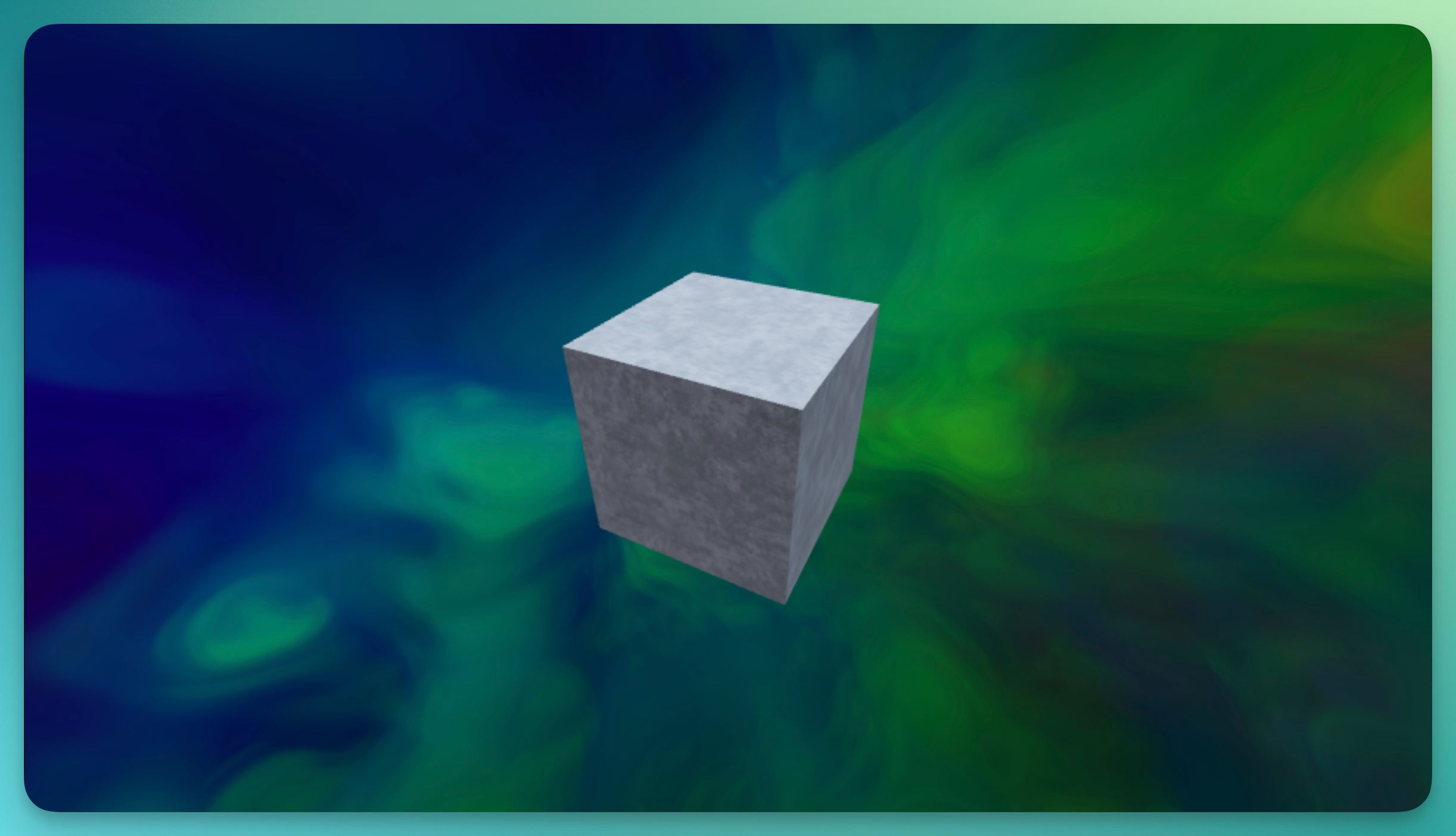
The Box element creates a 3D rectangular box that you can size, texture, and style. Use it for geometric designs, floating platforms, abstract compositions, or as a base for creative arrangements. Boxes support custom textures, making them versatile for everything from simple colored shapes to image-wrapped cubes.
Properties
Size
Control the box dimensions with three values:
- Width: Horizontal size
- Height: Vertical size
- Thickness: Depth (front to back)
Texture
Upload an image to wrap around the box surfaces. When a texture is applied, additional controls become available:
Texture Scale X/Y: Controls how the texture tiles across the surface.
Texture Rotation: Rotates the texture (0–360 degrees).
Texture Offset X/Y: Shifts the texture position on the surface.
Texture Wrap Mode:
- Repeat: Tiles the texture seamlessly
- Clamp: Stretches edges instead of repeating
- Mirror: Tiles with alternating mirrored copies
Appearance
Color: Sets the box color (when no texture is applied).
Opacity: Controls transparency (0–1).
Roughness: Controls surface reflectivity (0–1). Lower values create shinier surfaces.
Metalness: Adds metallic reflections (0–1).
Animation
Rotate Automatically: Enables continuous rotation to show all sides.
Rotation Speed: Controls auto-rotation speed (0.1–1).