
Keyframes got a major update.
We introduced easing presets instead of a single basic elastic easing.
You can now set a wider range of easing types per keyframe segment to shape motion exactly how you want, and use the inline Keyframe Curve Editor when you need deeper control.
New keyframe easing options
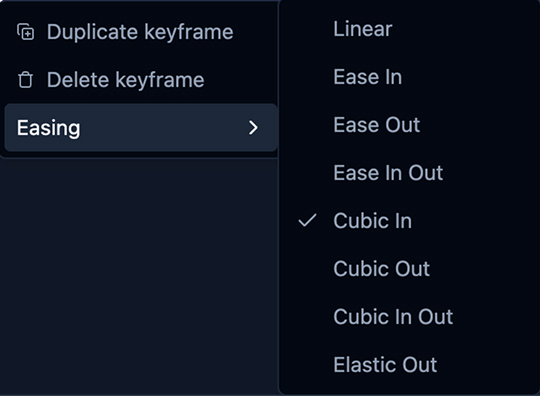
Current easing options in timeline keyframe menus and overlay:
LinearEase InEase OutEase In OutCubic InCubic OutCubic In OutElastic Out
Use these to control how each segment accelerates/decelerates between keyframes, from subtle smoothing to stronger stylized motion.
Keyframe Curve Editor
When a clip with keyframes is selected, use the curve icon on the clip to open the Keyframe Curve Editor.
In the editor you can:
- pick the active parameter curve
- drag keyframes and segments
- add / duplicate / delete keyframes
- edit easing from the top bar or context menu
Drag handles for deeper easing control
If presets are not enough, you can fine-tune easing manually with drag handles in the Keyframe Curve Editor.
This lets you shape the curve more precisely:
- make motion snap faster at the start
- hold longer and accelerate near the end
- create more stylized transitions than preset-only easing
So you can start with a preset (Cubic / Elastic) and then push it further by adjusting handles directly.
Add keyframe behavior
You can easily add keyframes right in the editor.
- Toolbar buttons for quickly adding, duplicating, and deleting keyframes
- Easing selector to change the easing of the selected keyframe
Quick tips for better visuals
- Start with
Cubic In Outfor smooth, musical motion, then tweak with handles. - Use
Elastic Outsparingly on impact moments (drops, transitions, logo hits). - Keep most segments subtle and save extreme easing for a few hero moments.
- Duplicate a keyframe, then offset it by a few frames to build natural micro-movement.
- If motion feels chaotic, reset one segment to
Linearand rebuild from there.
Small easing changes can make a big difference in how premium your final visual feels.
If something still feels off in your workflow, share a short recording in our Discord community and we will refine it quickly.
