
We've been working on this one for a while. This update rethinks the core editing experience — one continuous timeline, native audio clips, and an editor that finally feels like a proper video editor.
Here's what's new:
- One Continuous Timeline: The editor now uses a single flat timeline workflow
- Audio Clips: Audio is now a first-class clip type, not a separate project-level setting
- Audio Reactivity: Visualizers react to all your audio clips together
- Track Panel: Rename tracks, hide visual tracks, mute audio tracks
- Better Editing: Snapping, split-at-click, improved drag and selection
One continuous timeline
Scenes are no longer part of the day-to-day editing workflow.
Instead, you work in one continuous timeline, which makes timing and arrangement much more direct. You can place clips anywhere, resize them, move them around, and build your full structure without jumping between scene containers.
This makes the editor easier to learn and much faster to use, especially for longer projects.
Audio clips on the timeline
Audio now behaves like regular clips on the timeline.
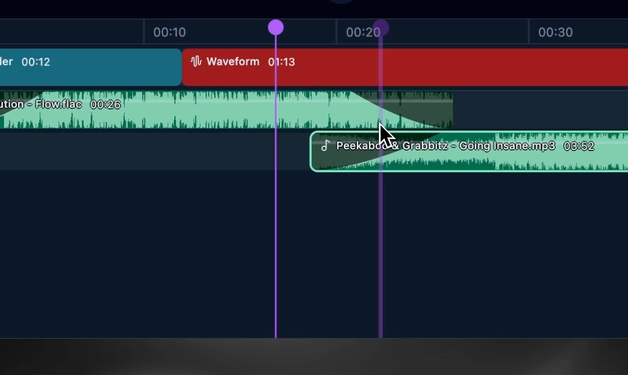
You can use multiple audio tracks and work with audio in a way that feels familiar from standard video editors:
- Per-clip volume in dB
- Fade in and fade out
- Trim and split
- Waveform visible directly on clips
Audio tracks are grouped in their own section below visual tracks, so it stays clean and easy to read.
Visualizers react to your full mix
If you have a vocal track, a beat, and an FX layer on separate audio tracks, your visualizers now respond to all of them together — not just one source.
Track panel and organization
The timeline now has a dedicated left panel where you can:
- Rename tracks by double-clicking the track name
- Toggle visibility on visual tracks (hidden tracks are excluded from preview and render)
- Toggle mute on audio tracks
Track layering and priority are clearer, and dropping clips below your existing tracks creates new tracks automatically.
Smoother editing interactions
A lot of timeline interactions were tightened up so editing feels more fluid:
- Snap guides: Clips snap to each other's edges with visible guide lines
- Split at click: Split actions respect where you click, not just the playhead
- Edge dragging: Better behavior when resizing clips near timeline boundaries
- Waveform performance: Faster waveform rendering so the timeline stays responsive
Bug fixes and improvements
- Video clips can include audio (muted by default)
- Better first-frame rendering reliability
- Improved timeline scrolling and resize behavior
If you run into anything unexpected, let us know in our Discord community. It helps us prioritize the next improvements quickly.
